For Non-Technical Users
What is MIFY?
Section titled “What is MIFY?”MIFY is a platform that lets you build AI-powered workflows without writing code. Think of it like connecting building blocks — each block does something (send an email, ask an AI a question, generate an image), and you connect them in the order you want things to happen.
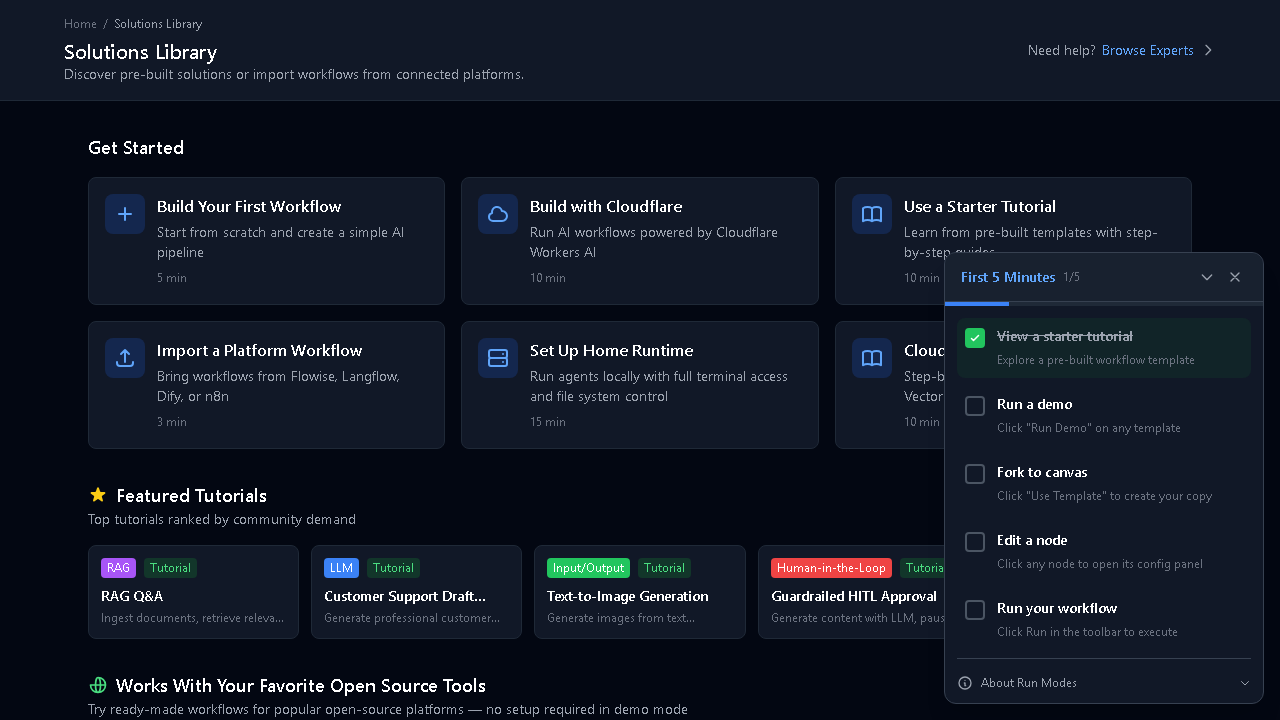
The Fastest Way to Start
Section titled “The Fastest Way to Start”Go to Templates and click one. MIFY has 140 pre-built workflows covering common tasks. Pick one, click “Use Template,” and you have a working workflow in seconds. Customize it, then run it.
| Template Category | What It Does | Example |
|---|---|---|
| RAG (9 templates) | Answer questions using your documents | Upload docs → ask questions → get AI answers backed by your data |
| LLM (12 templates) | Text tasks | Summarize emails, translate documents, classify support tickets |
| Logic (17 templates) | Decision workflows | Route requests based on rules, process items in batches |
| HITL (8 templates) | Human approval | AI drafts content → manager reviews → approved or revised |
| I/O (24 templates) | Connect to services | Read from APIs, store data, send notifications |
| Platform (63 templates) | Connect to other tools | Flowise, Dify, Langflow, n8n — import from tools you already use |
What Can You Do?
Section titled “What Can You Do?”Build on the Visual Canvas
Section titled “Build on the Visual Canvas”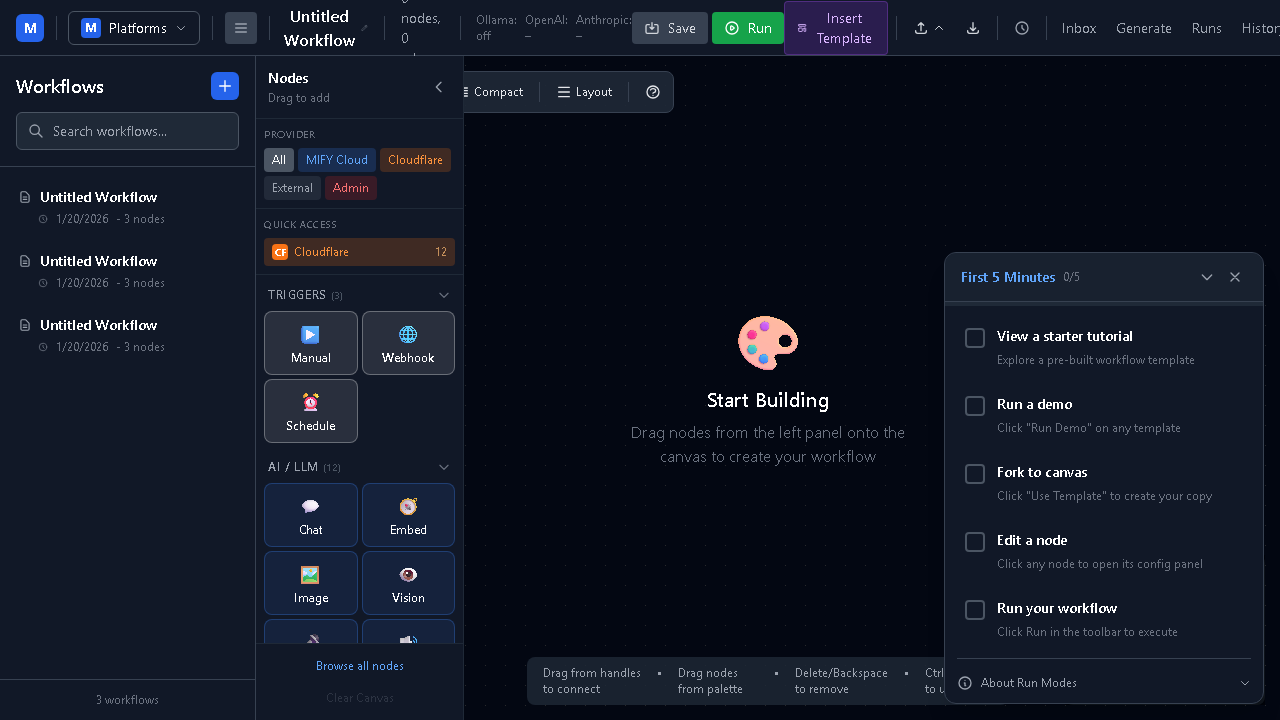
Open the Canvas and drag blocks onto the screen:
- Start with a Trigger (what starts your workflow — a button click, a schedule, or an incoming message)
- Add Processing blocks (ask AI, transform data, make decisions)
- Connect them with lines to define the flow
- Click Run
No code required. You see the entire process visually.
Use AI Without Being an Expert
Section titled “Use AI Without Being an Expert”MIFY connects to over 100 AI services — including ChatGPT, Claude, Gemini, and many others. You:
- Describe what you want in plain language
- Pick which AI service to use (or let MIFY choose the best one)
- Connect it to your other blocks
- Run it
You can choose between Fast (cheaper, quicker), Balanced, or Accurate (best quality) AI tiers.
Keep Humans in Control
Section titled “Keep Humans in Control”Add approval steps where a real person reviews the AI’s work:
- A manager approves a generated email before it’s sent
- A reviewer checks an AI-written report before it’s published
- A compliance officer reviews a financial calculation
Pending approvals appear in your Inbox — click Approve or Reject.
Generate Images and Videos
Section titled “Generate Images and Videos”Browse to Content Generation and:
- Pick a style or workflow
- Adjust settings with sliders and dropdowns (strength, quality, size)
- Click Generate
- View your results in the history
Three ways to generate:
- MIFY Queue — GPU-powered high-quality generation
- AI Provider — quick generation from ChatGPT, Cloudflare, etc.
- Local — run on your own computer if you have ComfyUI installed
Search Your Documents with AI
Section titled “Search Your Documents with AI”Upload documents to a Knowledge Base, then ask questions in natural language:
- Upload PDFs, Word docs, text files, HTML, CSV
- AI searches through your documents and gives answers with references
- Works across multiple documents — ask one question, get answers from all your files
Chat with AI
Section titled “Chat with AI”Use the built-in Chat feature — an interactive conversation backed by your workflows:
- Chat interface (start a session to chat with your workflows)
- Embed a chat widget on your own website
- Conversations remember context
Connect Your Accounts
Section titled “Connect Your Accounts”Connect your existing services:
- Gmail/Outlook — send and search emails from workflows
- Google Calendar/Outlook Calendar — create events, check availability
- Slack/Discord/Telegram — send messages to your team channels
Go to Settings → Email Accounts or Calendar Accounts to connect via one-click OAuth.
Get Notifications
Section titled “Get Notifications”MIFY notifies you when things happen:
- Workflow completed or failed
- Approval needed
- Scheduled task finished
Check your notifications at /notifications or your combined Inbox at /inbox.
How It Works (Two Ways)
Section titled “How It Works (Two Ways)”Way 1: Start from a Template
Section titled “Way 1: Start from a Template”Browse 140 templates → Pick one → Click "Use Template" → Customize if needed → Click Run → See resultsWay 2: Build from Scratch
Section titled “Way 2: Build from Scratch”Open Canvas → Drag blocks → Connect them → Click Run → See resultsBoth ways, no code needed.
Key Terms (Plain English)
Section titled “Key Terms (Plain English)”| Term | What It Means |
|---|---|
| Workflow | A series of automated steps that run in order |
| Node | One step in a workflow (like “Send Email” or “Ask AI”) |
| Trigger | What starts the workflow (clicking Run, a scheduled time, or an incoming message) |
| Canvas | The visual editor where you build workflows by dragging and connecting blocks |
| HITL | ”Human in the Loop” — a pause point where a person reviews before continuing |
| Template | A pre-built workflow you can use as a starting point |
| Knowledge Base | A collection of your documents that AI can search through |
| Provider | An AI service like ChatGPT, Claude, or Gemini |
What You Don’t Need to Know
Section titled “What You Don’t Need to Know”- You don’t need to write code
- You don’t need to understand databases
- You don’t need to manage servers
- You don’t need AI expertise
- You don’t need to choose which AI to use (templates have sensible defaults)
If you can use a web browser and follow instructions, you can use MIFY.