Course 1: MIFY Fundamentals — Chapter 1
Chapter 1: Your First Workflow from a Template
Section titled “Chapter 1: Your First Workflow from a Template”In this chapter, you’ll run a working AI workflow in under 5 minutes — without writing a single line of code.
What You’ll Learn
Section titled “What You’ll Learn”- How to navigate the MIFY interface
- How to find and use templates
- How to run a workflow and see results
Step 1: Open the Solutions Library
Section titled “Step 1: Open the Solutions Library”Navigate to the Templates page. You’ll see the Solutions Library:
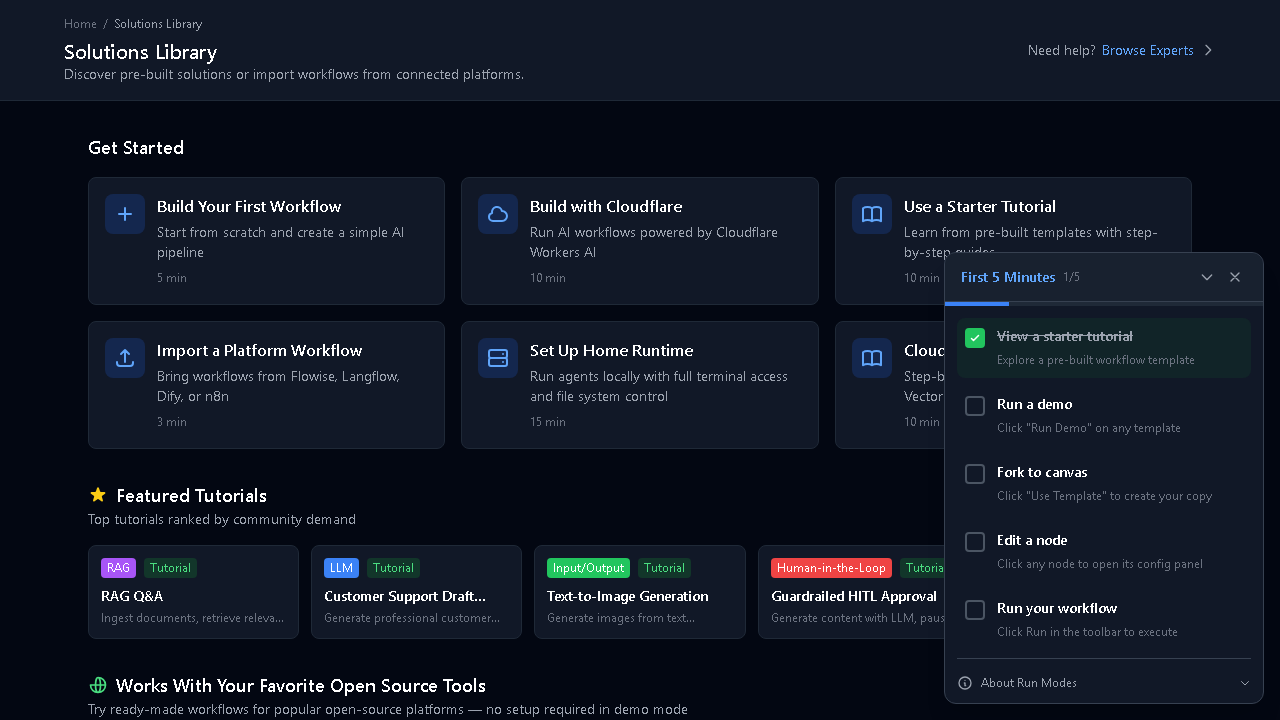
The library has sections:
- Get Started — beginner-friendly templates with time estimates
- Featured Tutorials — popular workflows ranked by community demand
- Works With Your Favorite Open Source Tools — integrations with Flowise, Dify, etc.
Step 2: Pick a Template
Section titled “Step 2: Pick a Template”Click “Build Your First Workflow” (5 min) in the Get Started section. This opens a simple AI pipeline template.
Or choose one from Featured Tutorials:
- RAG Q&A — ask questions about your documents
- Customer Support Draft — generate professional responses
- Text-to-Image Generation — create images from descriptions
- Guardrailed HITL Approval — AI generates, human approves
Step 3: Use the Template
Section titled “Step 3: Use the Template”Click “Use Template” on any template. This copies the workflow to your canvas.
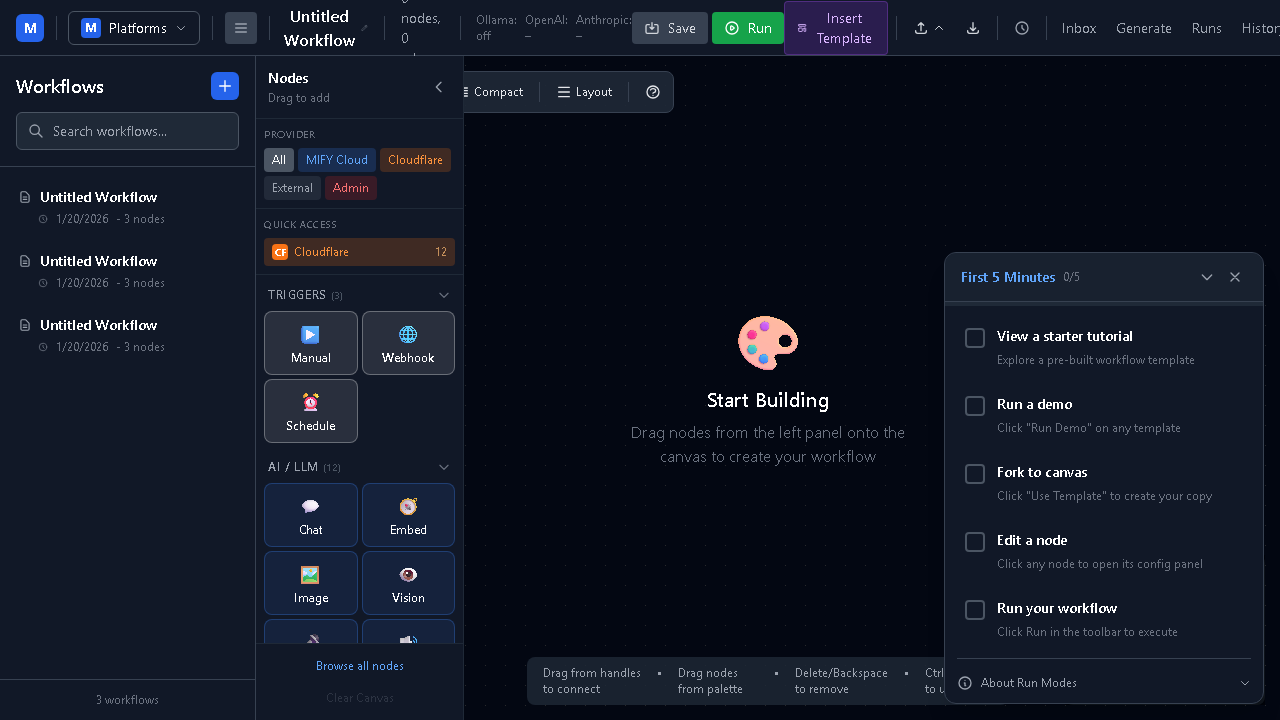
You’ll see:
- Nodes (blocks) connected by lines
- Each node has a name and type (e.g., “Chat”, “Manual Trigger”)
- The left panel shows available nodes you can add
Step 4: Run It
Section titled “Step 4: Run It”Click the green Run button in the toolbar. The workflow executes each step in order.
You’ll see:
- Each node lights up as it executes
- Results appear in the output panel
- If there’s an error, the failing node is highlighted
Step 5: View Results
Section titled “Step 5: View Results”After the run completes, click Runs in the top navigation to see your execution history.
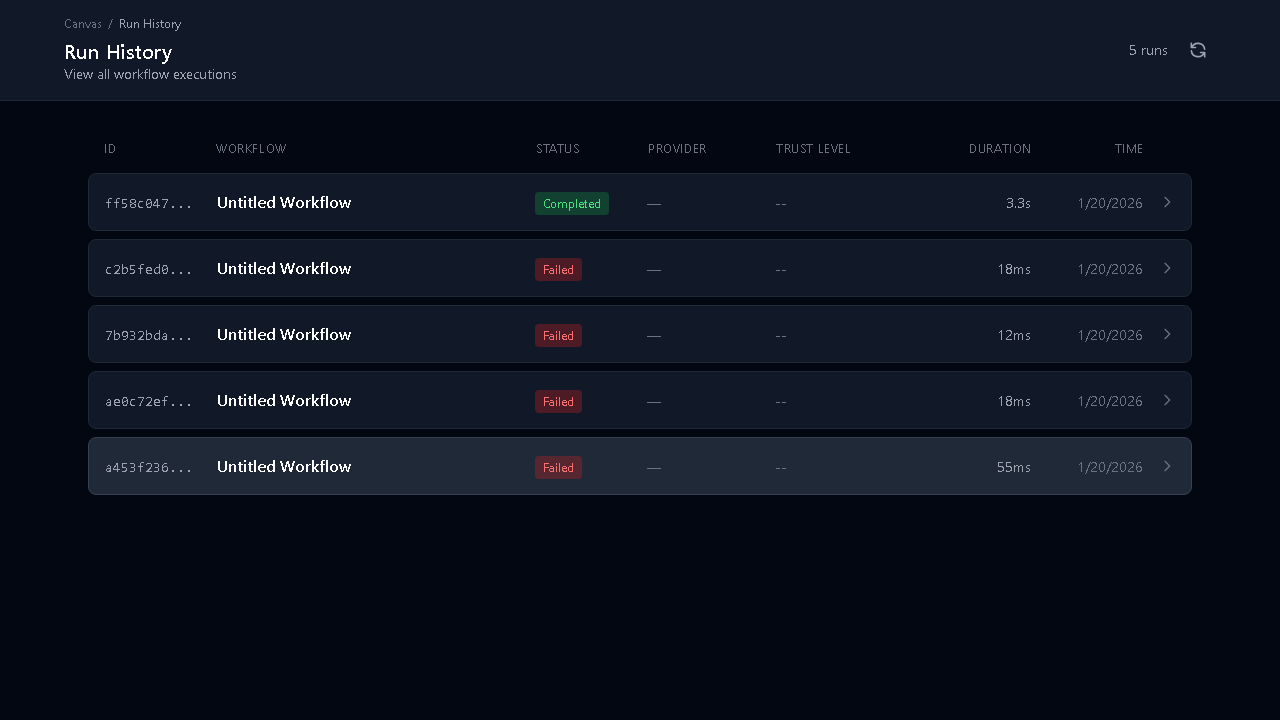
Each run shows:
- Status (completed, failed, waiting)
- Start time and duration
- Nodes executed
Click any run to see the full trace — what each node received and produced.
Exercise
Section titled “Exercise”- Open the Solutions Library
- Find the “RAG Q&A” template
- Click “Run Demo” to see it execute with sample data
- Click “Use Template” to copy it to your canvas
- Run it again and view the results
Key Takeaways
Section titled “Key Takeaways”- Templates are the fastest way to start — no building from scratch
- Every template can be customized after copying to your canvas
- The Runs page shows full execution history
- You don’t need API keys to run demo templates (they use mock mode)