Course 3: MIFY for Business — Chapter 2
Chapter 2: Choosing the Right Templates
Section titled “Chapter 2: Choosing the Right Templates”Match business needs to MIFY’s 140 pre-built templates.
What You’ll Learn
Section titled “What You’ll Learn”- Which templates solve which business problems
- How to evaluate templates before deploying
- Enterprise templates and service requirements
Templates by Business Need
Section titled “Templates by Business Need”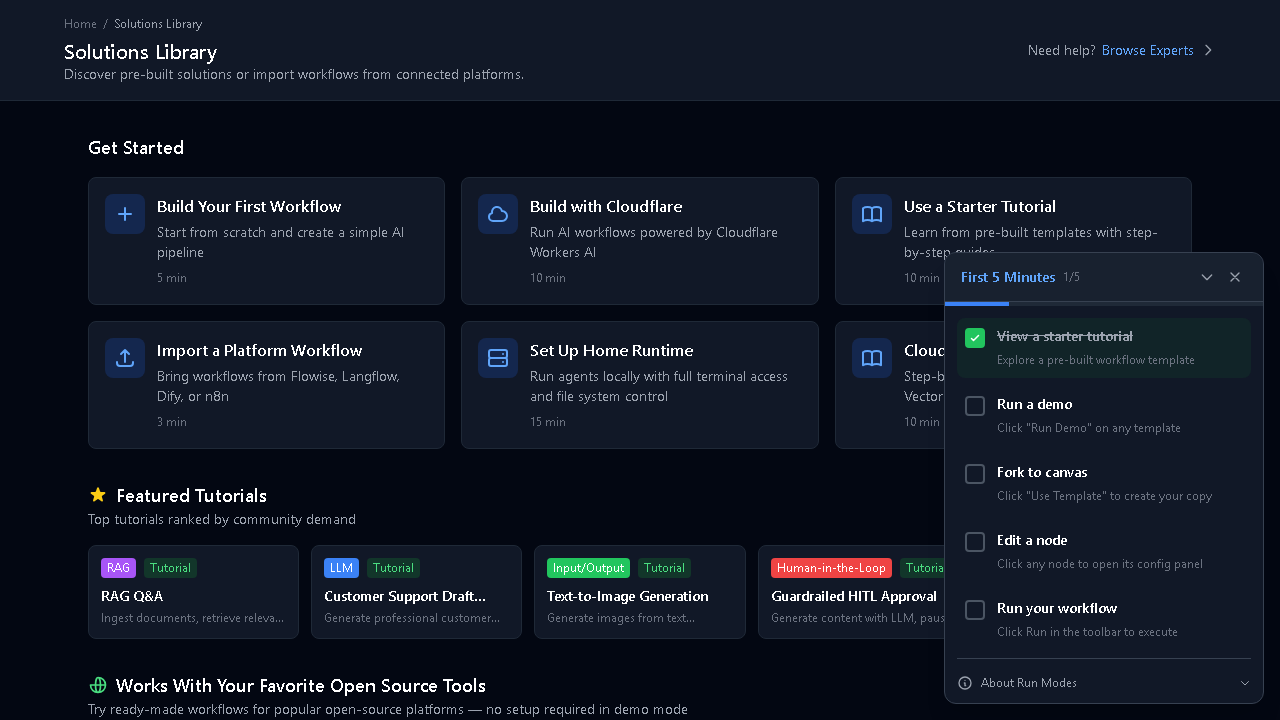
| Business Problem | Template Category | Specific Templates |
|---|---|---|
| Customer support automation | LLM | Customer Support Draft, Text Classification |
| Document Q&A for your team | RAG | RAG Q&A, Knowledge Base Chat |
| Content review and approval | HITL | Guardrailed HITL Approval, Agent Review Loop |
| Report generation | LLM + RAG | Text Summary, Document Analysis |
| Email automation | Enterprise | Email Send, Email Search |
| Meeting scheduling | Enterprise | Calendar Event, Availability Check |
| Data pipeline processing | Logic | Batch Loop, Fan-out/Join, Conditional Routing |
| Image/video creation | I/O + LLM | Text-to-Image, Image Variation Gallery |
| Platform migration | Platform | Flowise Import, Dify Bridge, n8n Connector |
Enterprise Templates
Section titled “Enterprise Templates”Some templates need connected services:
- Email templates → Connect Gmail or Outlook at
/settings/email-accounts - Calendar templates → Connect Google Calendar or Outlook Calendar
- Messaging templates → Configure Slack, Discord, or Telegram
Each template shows a readiness badge: Ready (services connected) or Setup Required (click to configure).
Evaluating Templates
Section titled “Evaluating Templates”Before deploying to your team:
- Click “Run Demo” to see the template execute with sample data
- Review the nodes and connections to understand the flow
- Check which AI provider and model it uses
- Click “Use Template” to copy and customize
Exercise
Section titled “Exercise”- Go to
/templates - Find a template for customer support
- Run the demo
- Fork it to your canvas and customize the system prompt
- Run it with real input
Previous: Chapter 1 — Team Setup | Next: Chapter 3 — Approval Workflows